

What is Nnete?

Nnete is an academic integrity tool integrated into our learner management system, MySANTS. It is designed to monitor and record assessment and examination activity in order to maintain the credibility of your assessments and protect the value of your qualification.
Step-by-Step Guide
Please find attached a step-by-step guide that will walk you through the entire Nnete proctoring process, from starting your examination to final submission. We strongly encourage you to read through this document carefully before your examination.
Step 1:
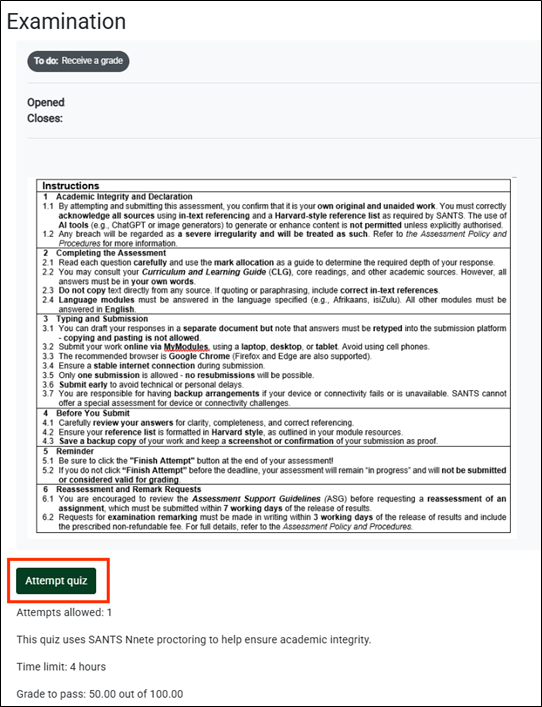
Start your examination by clicking “Attempt Quiz”. Please note the following message will appear on the exam entry page:
“This quiz uses SANTS Nnete proctoring to help ensure academic integrity.”
Step 2:
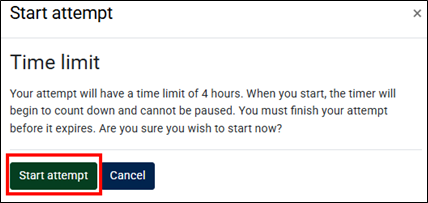
Note the message indicating you have only 4 hours to complete the examination. When you start, the timer will begin to count down and cannot be paused. You must finish your attempt before it expires. Select “Start attempt”
Step 3:
The next step of the process involves taking a photo with your webcam for identification purposes. If you do not allow the webpage access to your webcam, you won’t be able to start the examination. Please, if the websites prompt you to access your webcam, allow it so you can take a photo. If you do not allow it access to your webcam, the following message will appear:
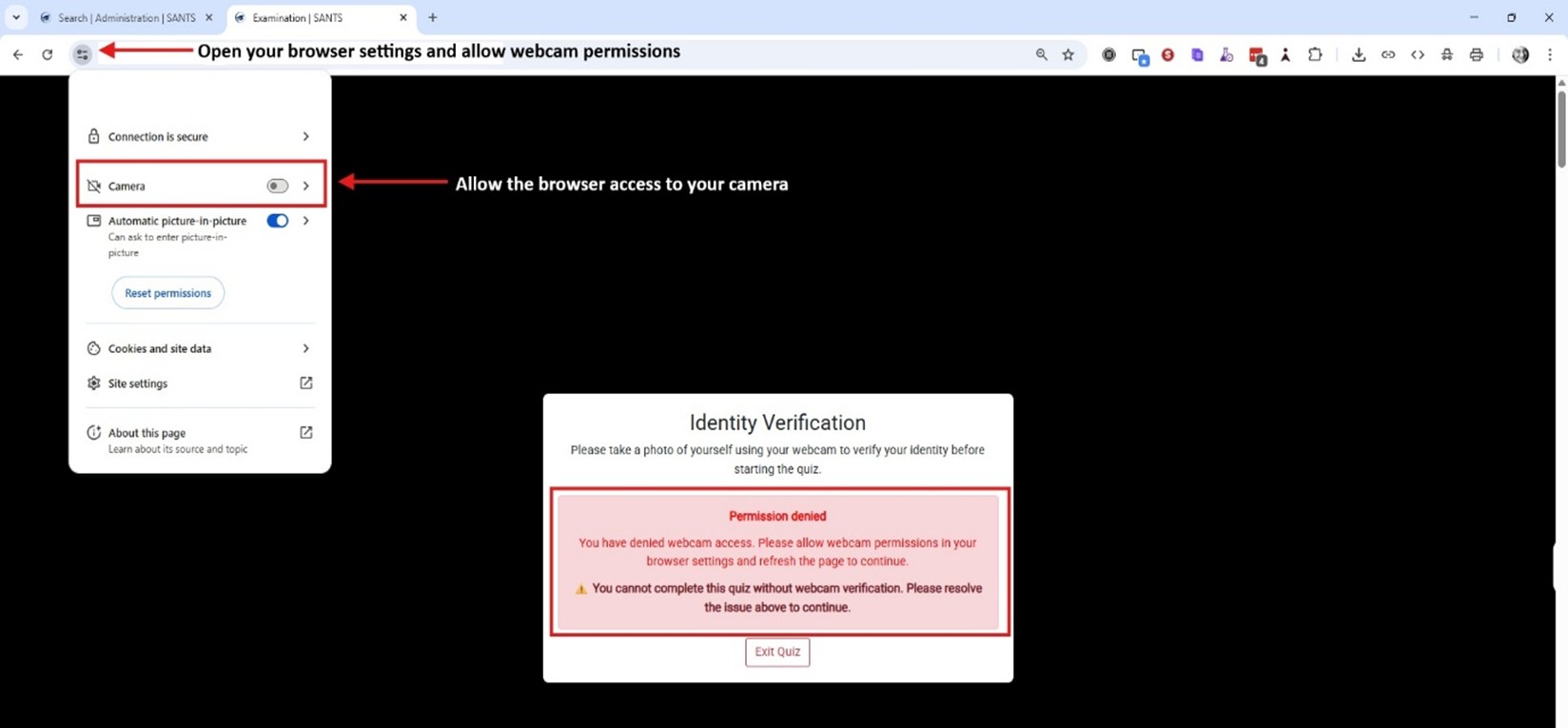
Subsequently, you would need to open your browser settings and enable webcam permissions.
Step 4:
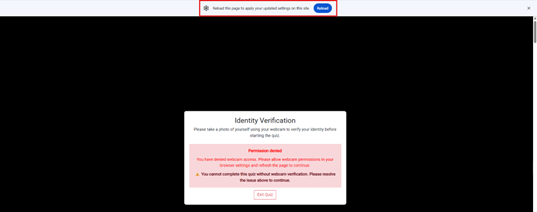
After this, you will be prompted to reload the site. Click on “Reload”.
Step 5:
You will be prompted to take a photo of yourself. Please look straight into the camera as you would when taking a photo for your ID or driver’s licence. Here is an example:
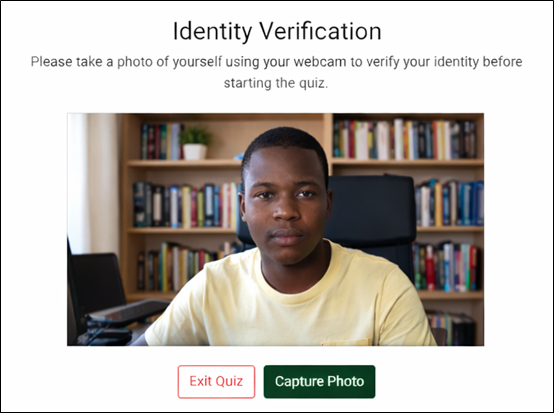
Below is an example of not looking suitably into the camera:
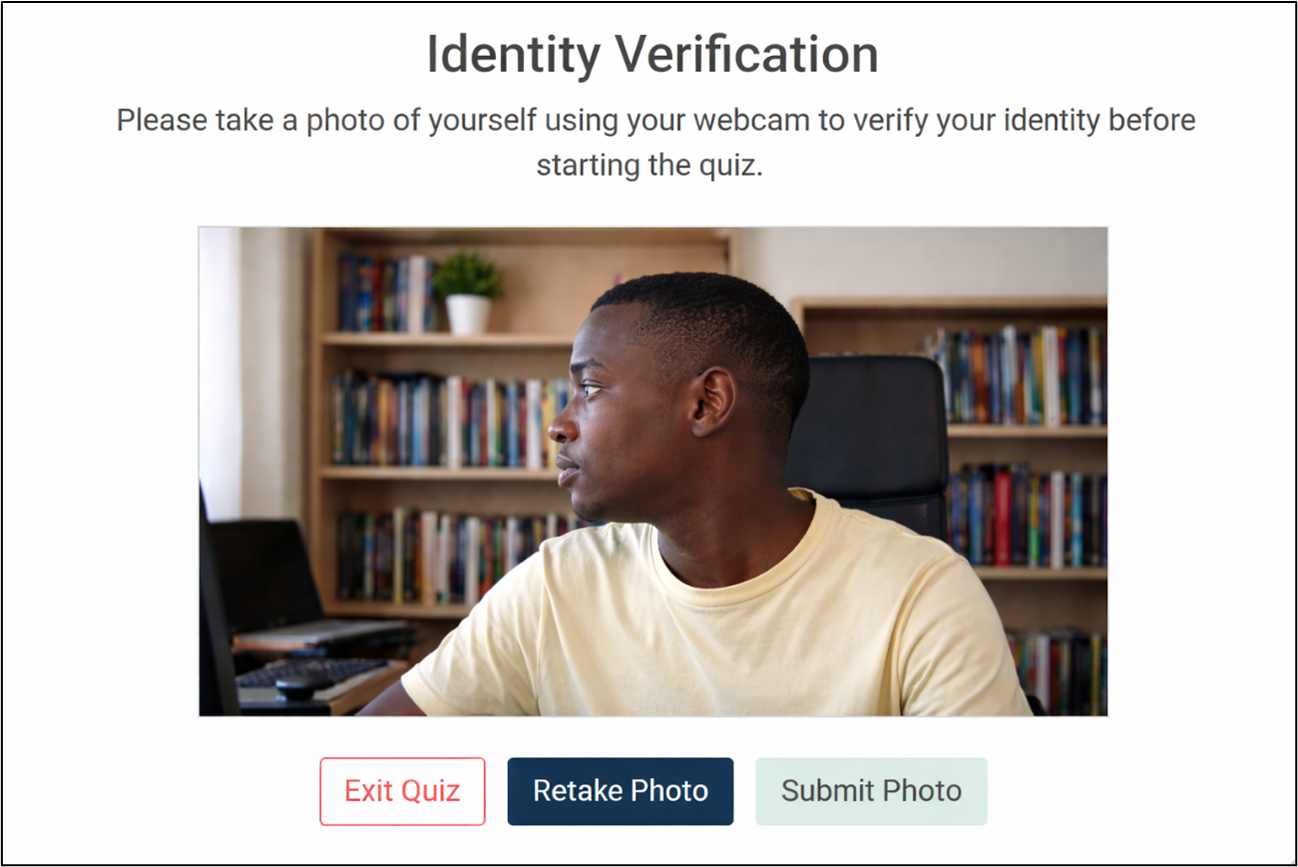
If you attempt to submit this version of your photo, the following message will appear:
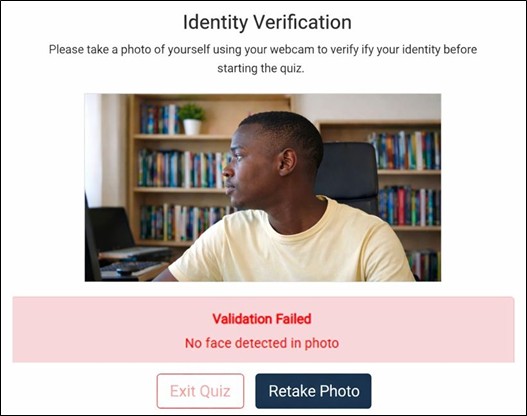
Please continue retaking your photo and capturing it.
Step 6:
After capturing your photo, you can begin the examination. You will notice distinct watermarks appearing on the background of your page. It contains the following:
- Your email address.
- Your IP address.
- The date and time.
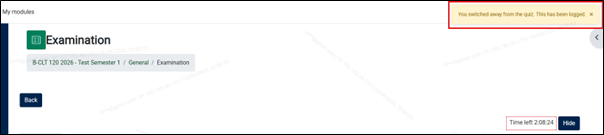
Please note: When you navigate away from the examination page, the following message will appear in the top right section of your page. We will log all activity that occurred outside the examination page and flag it for the academic team.

Step 7:
Complete your examination by selecting the “Finish attempt” button, like the assignments completed during the semester:
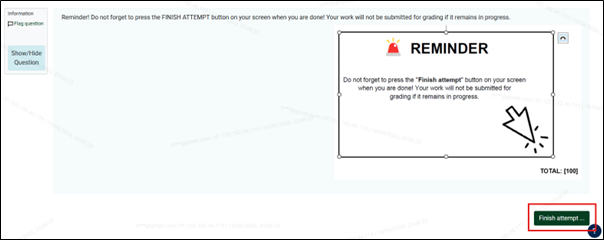
Step 8:
The final step that you must complete before submitting your examination is to take another photo of yourself. Follow the same process as in Step 5.
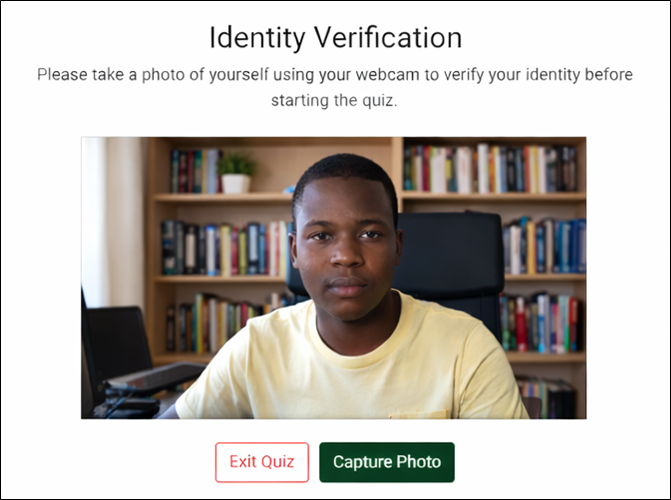
Additionally, complete the declaration and acknowledgement questions by selecting the tick boxes.
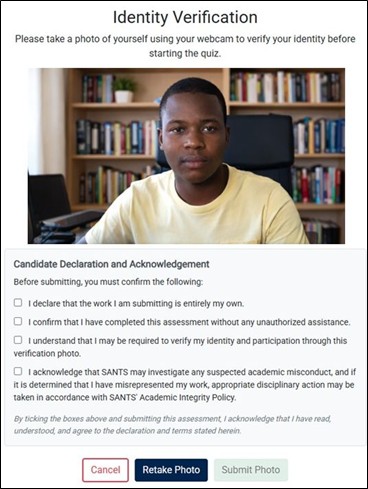
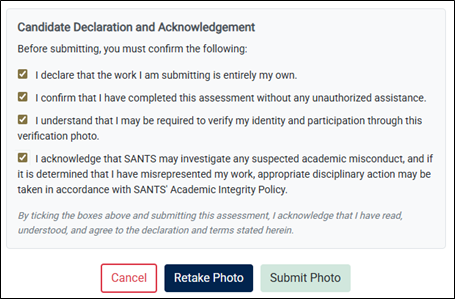
All the questions must be ticked before you can submit your photo. After ticking all the boxes, submit your photo.
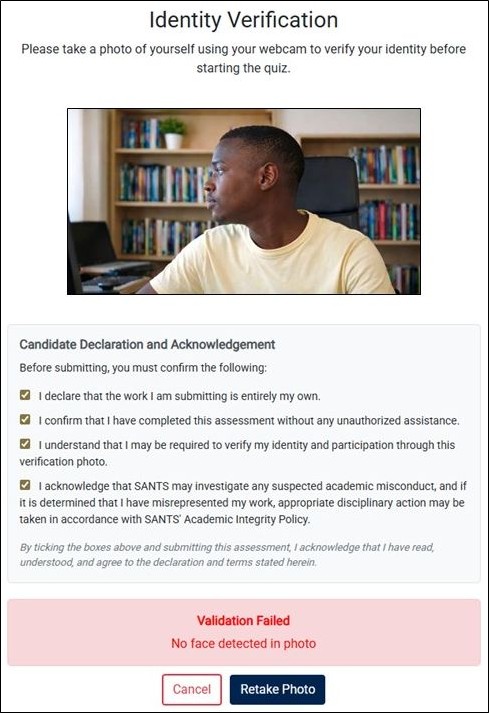
If your face is not suitably captured in the webcam, you will get a message indicating that your face was not detected in the photo, for example, below:
After submitting your photo correctly, you will see a brief message indicating that your photo is being validated and that your attempt is being submitted. If you have any questions on how the proctoring works, please reach out to the Student Support Department by logging a ticket in MySANTS.


